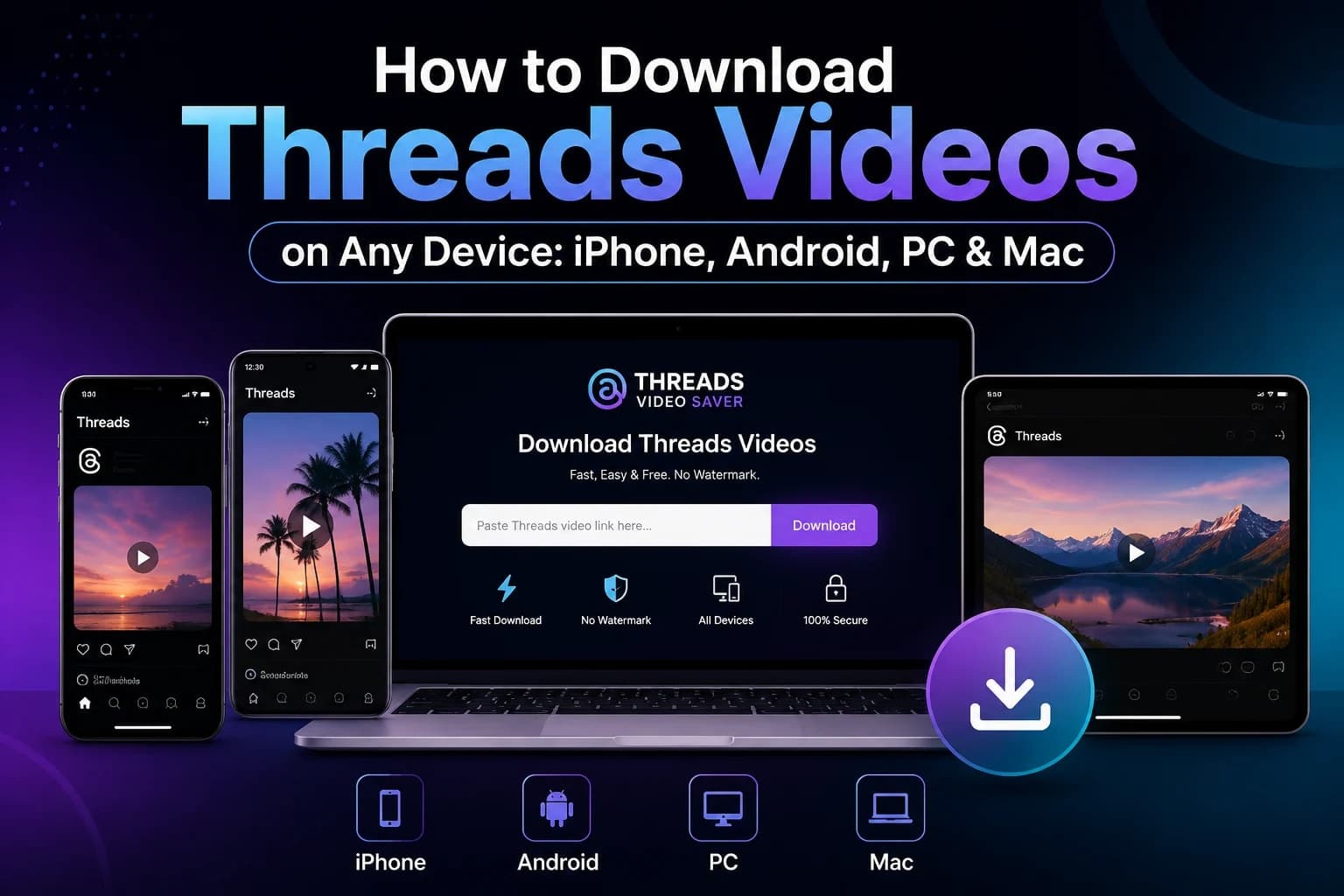
Copy the Threads post link, paste it into ThreadsSave, and press Download. The method is identical on every device — what changes is which browser handles it cleanly and where the MP4 ends up afterwards.
The three steps to save a Threads video take about ten seconds. The part that actually trips people up is everything after the download finishes: the file vanishes into a folder they can't find, or it never leaves the app they started in, or it lands somewhere the video editor won't read.
This guide covers the download itself once, then spends the rest of its time on what each operating system does differently — because that is where people get stuck.
The three steps, on every device
- Copy the post link. Open the individual post — not the profile — tap the share icon, and choose Copy link. On a computer, copy the URL from the address bar instead.
- Paste it into the downloader. Go to threadsvideosaver.com and drop the link into the box at the top. Nothing else to fill in.
- Pick a quality and save. Press Download, choose the highest resolution offered, and the MP4 saves straight to your device.
No account, no app, no extension. If a site asks you to log in with your Threads credentials before it will process a public post, close the tab — there is no legitimate reason for it to need them.
The reason these steps don't change from device to device is that the work happens on the server, not on your phone or laptop. The downloader reads the public post, finds the media file Meta's CDN is already serving to anyone who opens that page, and returns a direct link to it. Your device only has to save a file — something every browser has done since the 1990s. That is also why there is no "iPhone version" or "Windows version" of the tool to hunt for.
Where the file actually lands
This is the single biggest difference between platforms, and the reason most "I downloaded it but I can't find it" messages get sent.
| Device | Default destination | Extra step needed? |
|---|---|---|
| iPhone / iPad | Files app → Downloads | Yes — move it to Photos manually |
| Android | Downloads, then Gallery | Usually not, but indexing can lag |
| Windows PC | C:\Users\[you]\Downloads | No — plays natively |
| Mac | ~/Downloads | No — opens in QuickTime |
iPhone and iPad
iOS Use Safari, not the in-app browser
Tapping a link inside the Threads app opens it in Meta's built-in browser, which handles file downloads badly and often appears to do nothing at all. Copy the link in the app, then switch to Safari and paste it there. That single change fixes the majority of failed iPhone downloads.
Once the download completes, Safari's download icon appears next to the address bar. Tap it, tap the file, then use the share sheet and choose Save Video to move the clip into Photos. Until you do that, it lives only in Files — which is why it never shows up in your camera roll.
Full walkthrough with screenshots: downloading Threads videos on iPhone.
Android
Android Browser choice barely matters
Chrome, Samsung Internet, Firefox and Brave all handle the download the same way — the file goes to your Downloads folder and the system media scanner picks it up for Gallery shortly after. If the clip isn't in Gallery straight away, give it a minute or open the Files app and play it from Downloads directly.
One thing to skip: downloader apps from outside the Play Store. A browser does the job without asking for storage permissions or serving ads, and sideloaded APKs from unofficial sources are a real malware risk.
Step-by-step: downloading Threads videos on Android.
Windows PC
Windows The simplest of the four
Copy the post URL from your address bar, paste, download. The MP4 lands in your Downloads folder and plays in the Media Player app with no codec pack, converter or extra software.
Because the file is a plain MP4 rather than an installer, SmartScreen has nothing to warn you about. If a "downloader" site hands you an .exe instead, that is not a video — delete it.
Details here: downloading Threads videos on PC.
Mac
macOS Best option if you plan to edit
Safari, Chrome and Arc all work identically. The file saves to ~/Downloads, opens in QuickTime on a double-click, and imports into Final Cut Pro, Premiere or DaVinci Resolve without transcoding — the H.264 MP4 Threads serves is already an editing-friendly format.
Gatekeeper never gets involved, because you are downloading a media file rather than an application. If Safari asks whether to allow downloads from the site, that prompt is normal and appears for every download source.
Which device should you actually use?
If you are saving one clip to watch later, use whatever is in your hand. If you are collecting footage for a project, the choice matters more than people expect.
- Saving to rewatch offline: phone, either platform. Android is marginally quicker because the file reaches Gallery without a manual move.
- Building an archive or client folder: desktop. Renaming and sorting a batch of files on a phone is slow, and mobile storage fills fast.
- Editing or repurposing: Mac or PC. You'll be importing into an editor anyway, and the file is already sitting in the right place.
- Posting straight to another platform: phone, since the clip needs to be in Photos or Gallery for the upload picker to see it.
A workflow worth knowing if you regularly move footage between platforms: browse and copy links on your phone, but send the links to yourself and do the downloading on a computer. You end up with properly named files in one folder rather than a camera roll full of unlabelled clips, and you can push the finished versions back to your phone when you're ready to post. It costs one extra minute up front and saves a lot of scrolling later.
Fixes for the four most common problems
- Nothing happens after pressing Download (iPhone). You're in an in-app browser. Copy the link, open Safari, paste again.
- "Video not found" on any device. You copied the profile URL rather than the post URL, or the account is private. Open the individual post and copy from there. Private posts can't be processed.
- File saved but missing from Gallery (Android). The media scanner hasn't indexed it yet. Open Files → Downloads and play it from there; it will appear in Gallery shortly.
- Video looks soft or blurry. Downloading preserves the source file but can't improve it — a clip filmed at 720p stays 720p. See Threads video formats and quality explained.
Frequently asked questions
Do I need a different tool for each device?
No. ThreadsSave runs in the browser, so the same page works on iOS, Android, Windows, macOS, Linux and ChromeOS. There is nothing to install anywhere.
Can I download on a device that isn't signed in to Threads?
Yes. Public posts are readable without an account, so you can copy a link on your phone and download it on a work computer that has never opened Threads.
Does the quality differ between devices?
No. The same MP4 is delivered everywhere. What differs is playback — a 1080p vertical clip simply looks different on a phone screen than on a monitor.
Will the video have a watermark on any platform?
No. You get the original file as uploaded, on every device. More on that in our watermark-free download guide.
Is it legal to save a Threads video?
Saving a public video for personal use — offline viewing or a personal archive — is generally treated as fair use. Republishing it as your own or using it commercially without permission is not, regardless of which device you downloaded it on.