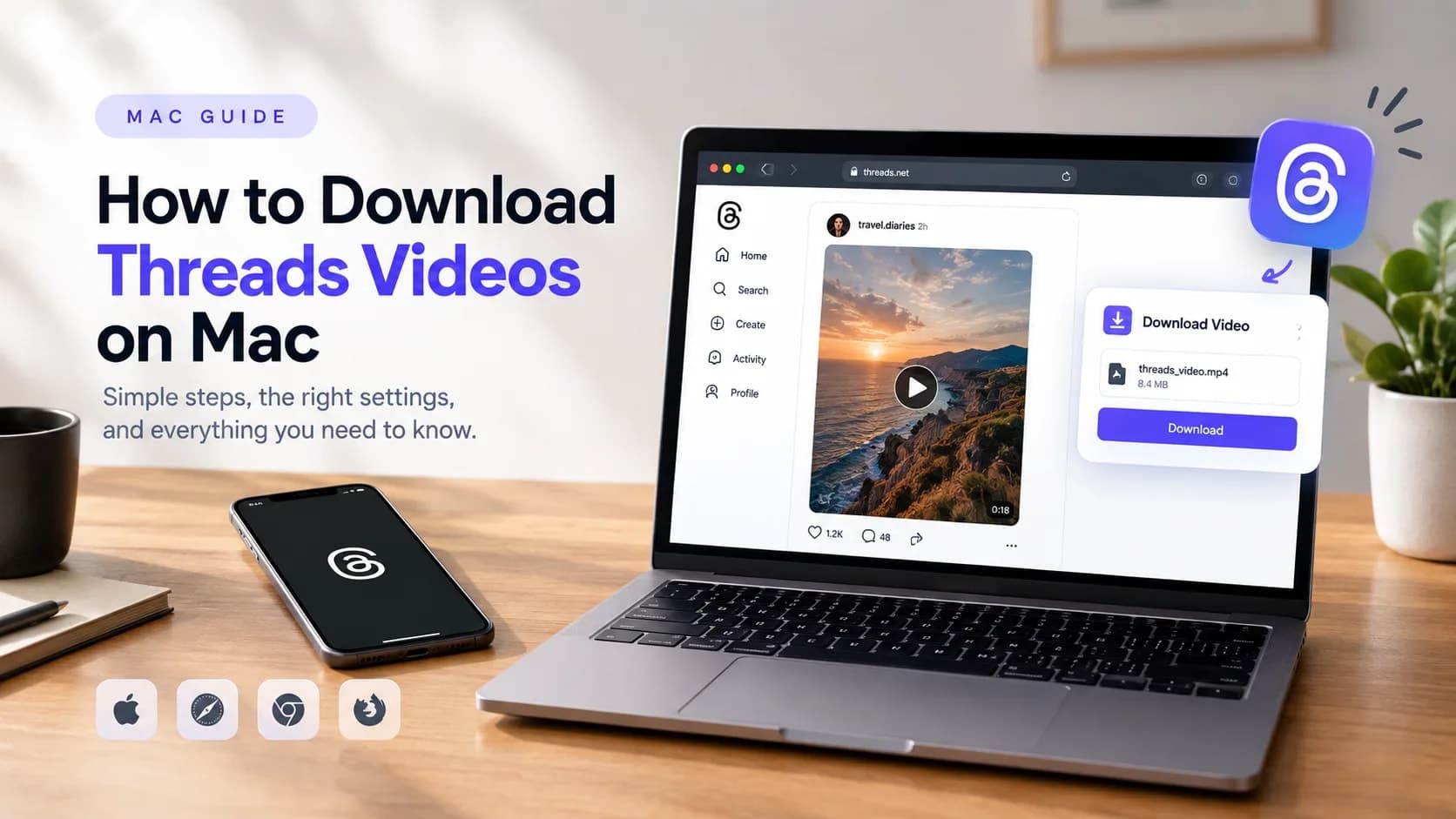
Quick answer: open ThreadsSave in Safari or Chrome, paste the Threads post link, and click Download. The file saves straight to your Mac's Downloads folder as a standard MP4. For the shortest possible step-by-step, see the Mac download guide. This article goes further: what to do when something doesn't work the way you expect, how to bring the file into an editor, and how to manage downloads if you're saving more than one clip.
If you want to download Threads videos on Mac, the good news is it's one of the more forgiving cases across every platform ThreadsSave supports. There's no app store approval process to wait on, no permissions dialog demanding access to your photo library, and no separate mobile-style download manager to fight with. The file behaves like any other download: it lands in your Downloads folder and opens with whatever app macOS already has for MP4s.
That simplicity is also why most guides on this topic stop after five steps. What they skip is everything that happens once the file exists on your machine: getting it into an editor cleanly, understanding the security prompts macOS sometimes shows, and keeping a folder of downloads from turning into chaos if you're saving more than a couple of clips.
Two Ways to Download Threads Videos on Mac
There are really only two approaches to saving a Threads video on macOS, and they behave quite differently.
Browser-based, no extension
You paste the post link into a site like ThreadsSave and the file downloads through the browser's normal download mechanism. This is what happens with any web download, whether it's a PDF, an image, or a video. macOS treats it the same way regardless of source, which means no special permissions, no extension update to keep current, and nothing running in the background after the file lands.
Browser extension
Some tools install a Safari or Chrome extension that adds a download button directly on the Threads page. The convenience is real, but so is the tradeoff: extensions request broad permissions, often including "read and change all data on websites you visit," and that permission doesn't switch off once you're done downloading. On Mac specifically, where Safari extensions run with fairly wide latitude by default, this is worth being deliberate about. Unless an extension is well known and actively maintained, the browser-based route avoids the question entirely.
How to Download Threads Videos on Mac: Step by Step
- Open the post directly. Not the profile, the individual post. You need the URL of that specific post, which you can copy from the share icon in the Threads app or straight from the address bar if you're already browsing Threads on the Mac.
- Head to ThreadsSave. Any Mac browser works: Safari, Chrome, Firefox, Brave, or Arc.
- Paste and process. Drop the link into the box and click Download. This usually takes a couple of seconds.
- Save the MP4. Choose the highest quality option shown, then click Save. Safari and Chrome will typically send it straight to Downloads without asking, though your settings may prompt you to choose a folder instead.
What macOS does after the download
A few behaviours are specific to Mac and worth knowing before they catch you off guard.
The Gatekeeper prompt. If you ever see a warning about a file being downloaded from the internet, that's macOS's Gatekeeper feature, and it applies to applications, not video files. An MP4 is media, not executable code, so this prompt should not appear for a normal video download. If it does appear, treat that as a signal something about the file is not what it claims to be, and don't proceed.
Where to actually find it. Safari shows a small downward arrow in the toolbar once a download completes; click it to jump straight to the file. Chrome shows a similar tray at the bottom of the window. Either way, the file is sitting in ~/Downloads unless you changed your browser's default save location.
Opening it. Double-clicking the file launches QuickTime Player by default. If you'd rather preview it in Finder without opening a separate app, select the file and press the space bar for Quick Look.
Bringing it into an editor
This is where downloading on a Mac has a real advantage over some other platforms. Threads serves video as H.264-encoded MP4, which is a format every major Mac editor reads natively, with no conversion step in between.
| Editor | Import method |
|---|---|
| iMovie | File > Import Media, or drag the file straight into a project |
| Final Cut Pro | File > Import > Media, same drag-and-drop support |
| DaVinci Resolve | Media Pool > Import Media; no transcode step needed for standard H.264 |
The one thing worth checking before you build an edit around a downloaded clip is resolution. Downloading preserves whatever quality the original post was uploaded at; it can't add detail that wasn't there. If a source clip was posted at a lower resolution, stretching it to fill a 4K timeline will look soft no matter which editor you're using. Right-click the file in Finder, choose Get Info, and check the dimensions before you commit to a full edit.
Managing more than one download
If you're only saving the odd clip here and there, the default Downloads folder is fine. If you're pulling several videos for a project, it gets messy fast, since every file lands in the same folder with a generic name and no organisation by source.
- Create a project folder before you start downloading, and drag each file over as it lands rather than sorting a pile of clips afterward.
- Rename as you go. A batch of files named "video (1).mp4" through "video (14).mp4" is unsearchable within a week. A short descriptive name takes five seconds and saves real time later.
- Watch iCloud Drive's Optimize Storage setting if your Desktop and Documents folders are synced to iCloud. Large video files sitting in a synced folder can get offloaded to iCloud to save local space, which means the file may need to re-download before an editor can open it. Keeping an active project folder outside the synced Desktop or Documents path avoids this entirely.
Frequently asked questions
Is it free to download Threads videos on Mac?
Yes, completely free, with no sign-up and no limit on how many clips you save. There's nothing to unlock or upgrade.
Does this work on both Intel and Apple Silicon Macs?
Yes. The download happens entirely through the browser, so it's unaffected by which chip your Mac runs on. There's nothing to run through Rosetta and nothing chip-specific about the process at all.
Will macOS flag the download as unsafe?
No, not for a standard MP4 from a browser download. Gatekeeper warnings are aimed at applications and installers, not media files.
Can I download without opening a browser at all, using Shortcuts?
Not reliably. Threads doesn't expose a public API for this, so any workflow claiming to fully automate it through Shortcuts is working around limitations that tend to break without warning. The browser method stays the most dependable option.
Does the video keep its original quality on Mac?
Yes. The file you get is the same one Threads serves to any viewer, with nothing re-encoded or compressed further. For more on how Threads handles resolution and format, see Threads Video Formats and Quality Explained.
Is there a faster way if I already know the steps?
The fastest-method guide strips the process down to the bare minimum if you don't need any of the troubleshooting or editing detail covered here.